> ## Documentation Index
> Fetch the complete documentation index at: https://dev.polltheroom.com/llms.txt
> Use this file to discover all available pages before exploring further.
# MCP server
> Give an AI agent the same verbs as the API, as tools, with one command.
Poll the Room speaks the [Model Context Protocol](https://modelcontextprotocol.io). Connect the server and an agent can build decks, put polls on slides, look at the result, start a room and read the results, with the same key and the same rules as the REST API.
```
https://test.polltheroom.com/api/mcp
```
The server is stateless Streamable HTTP. One JSON-RPC message goes in, one reply comes out, and there is no session to keep. It authenticates with the same bearer key as the API. On connect it hands the agent short instructions on what to do first, and the [tools](/mcp-server/tools) carry the full schema of every widget.
OAuth is coming. Until then every client that can send a header connects today. ChatGPT and the claude.ai connector directory cannot send a key, so they connect once OAuth lands.
## Before you start
Open **Settings › API** in Poll the Room and make a key. The secret is shown once.
An agent that builds decks needs `decks:read` and `decks:write`. Add `rooms:start`, which the Pro plan sells, and `results:read` only when it should run the room and read the answers. See [scopes](/authentication#scopes).
Where a client can read the key from an environment variable, the examples below do that. Set it once in your shell profile.
```bash theme={null}
export POLLTHEROOM_KEY=ptr_YOUR_KEY
```
## Connect
Pick your client. Every example names the server `polltheroom`.
```bash theme={null}
claude mcp add --transport http polltheroom https://test.polltheroom.com/api/mcp \
--header "Authorization: Bearer $POLLTHEROOM_KEY" --scope user
```
`--scope user` makes it available in every project. Run `claude mcp list` and the server shows as connected; in a session, `/mcp` shows the same.
To share the server with everyone on a project, put it in `.mcp.json` at the project root instead. Claude Code fills in the key from each person's own environment.
```json theme={null}
{
"mcpServers": {
"polltheroom": {
"type": "http",
"url": "https://test.polltheroom.com/api/mcp",
"headers": { "Authorization": "Bearer ${POLLTHEROOM_KEY}" }
}
}
}
```
Add to `~/.cursor/mcp.json` for every project, or `.cursor/mcp.json` in one project. Cursor reads the key from the environment.
```json theme={null}
{
"mcpServers": {
"polltheroom": {
"url": "https://test.polltheroom.com/api/mcp",
"headers": { "Authorization": "Bearer ${env:POLLTHEROOM_KEY}" }
}
}
}
```
Claude Desktop's own connector dialog takes OAuth servers only. Until ours speaks OAuth, bridge it with `mcp-remote` in `claude_desktop_config.json`. The key sits in `env`, which also keeps the space after `Bearer` intact on Windows.
```json theme={null}
{
"mcpServers": {
"polltheroom": {
"command": "npx",
"args": [
"-y",
"mcp-remote",
"https://test.polltheroom.com/api/mcp",
"--header",
"Authorization:${AUTH_HEADER}"
],
"env": { "AUTH_HEADER": "Bearer ptr_YOUR_KEY" }
}
}
}
```
The file lives at `~/Library/Application Support/Claude/claude_desktop_config.json` on macOS and `%APPDATA%\Claude\claude_desktop_config.json` on Windows. `npx` needs Node.js on the machine. Restart Claude Desktop afterwards.
Add to `.vscode/mcp.json`. VS Code asks for the key the first time the server starts and keeps it for you, so the file holds no secret.
```json theme={null}
{
"inputs": [
{
"type": "promptString",
"id": "polltheroom-key",
"description": "Poll the Room API key",
"password": true
}
],
"servers": {
"polltheroom": {
"type": "http",
"url": "https://test.polltheroom.com/api/mcp",
"headers": { "Authorization": "Bearer ${input:polltheroom-key}" }
}
}
}
```
Copilot's agent mode picks up the tools. **MCP: List Servers** in the command palette shows whether the server runs.
Codex reads the key from an environment variable and never writes it down.
```bash theme={null}
codex mcp add polltheroom --url https://test.polltheroom.com/api/mcp --bearer-token-env-var POLLTHEROOM_KEY
```
Or add it to `~/.codex/config.toml` by hand.
```toml theme={null}
[mcp_servers.polltheroom]
url = "https://test.polltheroom.com/api/mcp"
bearer_token_env_var = "POLLTHEROOM_KEY"
```
```bash theme={null}
gemini mcp add --transport http --header "Authorization: Bearer $POLLTHEROOM_KEY" polltheroom https://test.polltheroom.com/api/mcp
```
Or add it to `~/.gemini/settings.json`. Use `httpUrl`; a plain `url` there means the older SSE transport, which this server does not speak.
```json theme={null}
{
"mcpServers": {
"polltheroom": {
"httpUrl": "https://test.polltheroom.com/api/mcp",
"headers": { "Authorization": "Bearer ptr_YOUR_KEY" }
}
}
}
```
Add to `~/.codeium/windsurf/mcp_config.json`. Windsurf takes `serverUrl` for a remote server.
```json theme={null}
{
"mcpServers": {
"polltheroom": {
"serverUrl": "https://test.polltheroom.com/api/mcp",
"headers": { "Authorization": "Bearer ptr_YOUR_KEY" }
}
}
}
```
Open **Manage MCP Servers**, then **View raw config**, and add the server to `mcp_config.json`. Antigravity takes `serverUrl` for a remote server.
```json theme={null}
{
"mcpServers": {
"polltheroom": {
"serverUrl": "https://test.polltheroom.com/api/mcp",
"headers": { "Authorization": "Bearer ptr_YOUR_KEY" }
}
}
}
```
Add to `opencode.json` in your project, or `~/.config/opencode/opencode.json` for every project. OpenCode reads the key from the environment.
```json theme={null}
{
"$schema": "https://opencode.ai/config.json",
"mcp": {
"polltheroom": {
"type": "remote",
"url": "https://test.polltheroom.com/api/mcp",
"enabled": true,
"headers": { "Authorization": "Bearer {env:POLLTHEROOM_KEY}" }
}
}
}
```
Add to Zed's `settings.json`.
```json theme={null}
{
"context_servers": {
"polltheroom": {
"url": "https://test.polltheroom.com/api/mcp",
"headers": { "Authorization": "Bearer ptr_YOUR_KEY" }
}
}
}
```
Any other client connects the same way if it speaks Streamable HTTP and can send a header. Give it the URL above and the header `Authorization: Bearer ptr_YOUR_KEY`.
## Check that it works
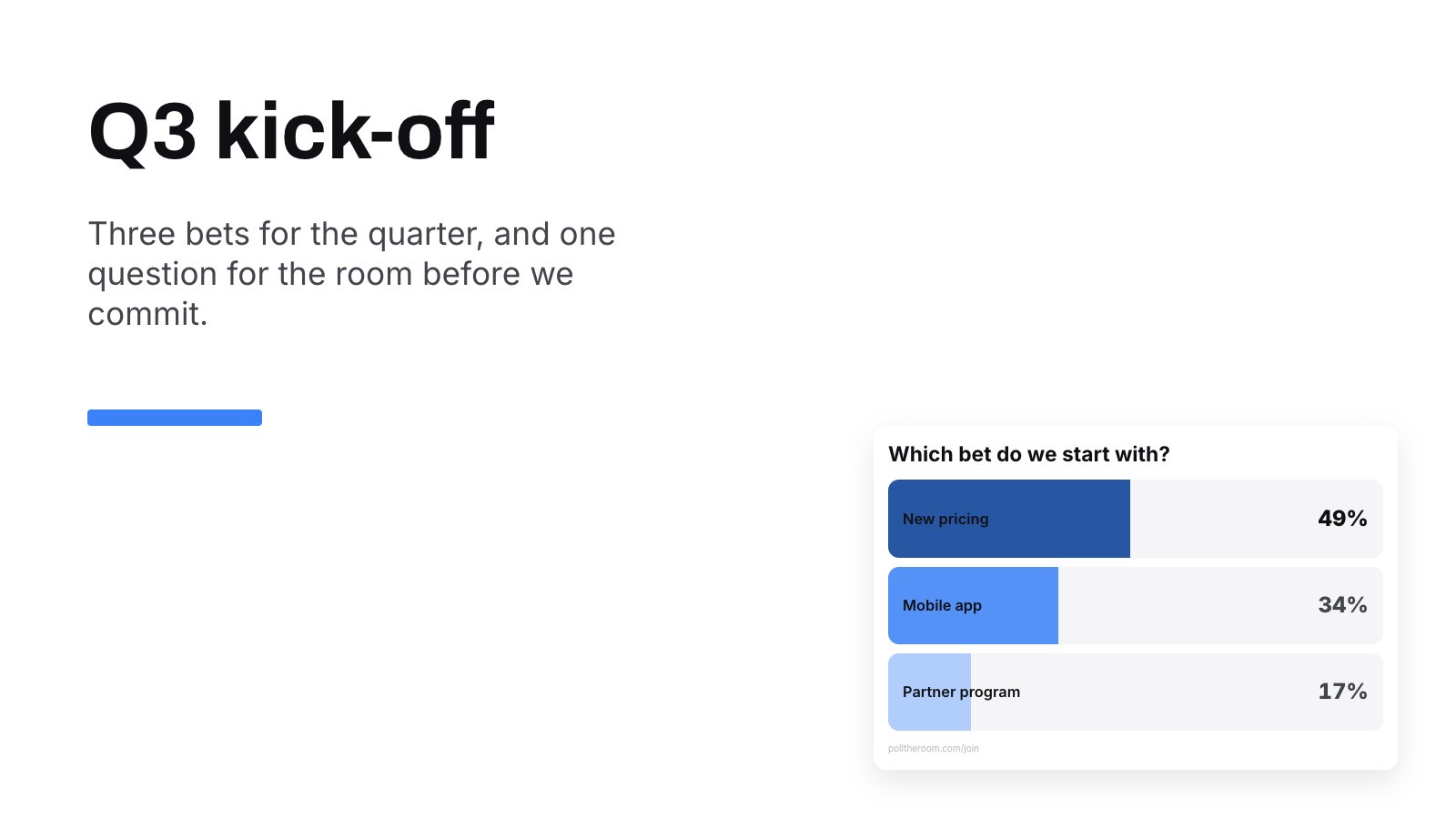
> Make a deck called "Q3 kick-off" with one slide. Put the title "Q3 kick-off" on the left, and beside it a multiple-choice card asking "Which bet do we start with?" with New pricing, Mobile app and Partner program. Then show me the slide.
The agent builds the deck with `create_deck` and the step verbs, then calls `get_screenshot`. Most clients ask before a tool runs the first time.
`get_screenshot` hands the agent a picture, drawn by the same renderer as the room. The agent is told to move a card that covers text or is too small to read, and the reply says so too. Open the deck's `url` to see the same slide in the editor.
 If a step fails, [When something fails](#when-something-fails) below names the usual causes.
## What the agent does first
On connect the server tells the agent how a session goes. Build a deck with `create_deck`, attach a PDF with `attach_pdf` when there is one, put polls on slides with `add_overlay`, look at every slide it touched with `get_screenshot` and fix what `problems` names. Then go live with `start_room` and hand its `presentUrl` to the person presenting. That works for a deck with slide pages too; the server draws the pages first. The whole reference is one file at [`/llms-full.txt`](https://test.polltheroom.com/llms-full.txt).
Every tool with its arguments, generated from the server's own list.
What the tools write. Every widget, its looks, and what it needs before it goes on stage.
## When something fails
A tool that cannot do what was asked answers with a result marked `isError` and a sentence saying what to fix, so the agent can act on it. Only a missing key is refused at the protocol level, with `401`.
| You see | It means |
| ---------------------------------------------------------- | ------------------------------------------------------------------------------------------------------------------------------------------ |
| `No usable API key` | The header is missing or the key was revoked. Make one under Settings › API. |
| `This key can't do that. It needs the "rooms:start" scope` | The key lacks a scope, or the plan does not sell it. The sentence says which. |
| `The deck changed since you read it` | Someone else wrote in between. Read again and retry with the new `revision`. |
| `Over 60 requests in an hour on this key` | The hourly limit. Wait the seconds it names. |
| `This deck has slide pages but no PDF behind them` | Its slides point at pages that were never attached. Attach the slides with `attach_pdf`, then start the room. |
| `Hiding the join link is a Pro setting` | A card sets `showJoin` to `false` on a team without Pro. The fix names the card and step. Leave it out or `true`, or move the team to Pro. |
Connecting and listing the tools need no key, so a client can show every tool while each call answers `No usable API key`. The header did not arrive. Check that the variable the config reads is set where the client runs. An app opened from the Dock or the Start menu does not see variables from your shell profile, so start it from a terminal or put the key in the config itself.
The server speaks Streamable HTTP and answers only `POST`. A client set up for the older SSE transport opens the URL with `GET`, gets `405` and gives up. Pick the HTTP option, which is `type: "http"` in Claude Code and VS Code, `httpUrl` in Gemini CLI and `serverUrl` in Windsurf and Antigravity. Check that the URL ends in `/api/mcp`.
A client reads the tool list when it connects, and this server does not announce changes. After a new tool ships, reconnect the server or restart the client.
The key lacks the scope that tool needs, or the team's plan does not sell it. The answer names the scope. Make a new key with that scope under Settings › API, or move the team to Pro for `rooms:start`.
A key makes 60 requests an hour on the free plan and 1000 on Pro. Every tool call counts, a screenshot too; connecting and listing the tools do not. The answer says how many seconds to wait. An agent that looks at every slide after each small change spends the hour quickly, so ask it to look once per slide when it is done.
`mcp-remote` runs through `npx`, which needs Node.js on the machine. Install a current Node.js, then restart Claude Desktop.
## Keys and agents
A key acts for the person who made it, inside their team, and reaches the same decks they do. Give each agent its own key, so revoking one stops that agent and nothing else. An agent can bin a deck with `delete_deck`; it stays in the bin for thirty days, the same as in the app.
If a step fails, [When something fails](#when-something-fails) below names the usual causes.
## What the agent does first
On connect the server tells the agent how a session goes. Build a deck with `create_deck`, attach a PDF with `attach_pdf` when there is one, put polls on slides with `add_overlay`, look at every slide it touched with `get_screenshot` and fix what `problems` names. Then go live with `start_room` and hand its `presentUrl` to the person presenting. That works for a deck with slide pages too; the server draws the pages first. The whole reference is one file at [`/llms-full.txt`](https://test.polltheroom.com/llms-full.txt).
Every tool with its arguments, generated from the server's own list.
What the tools write. Every widget, its looks, and what it needs before it goes on stage.
## When something fails
A tool that cannot do what was asked answers with a result marked `isError` and a sentence saying what to fix, so the agent can act on it. Only a missing key is refused at the protocol level, with `401`.
| You see | It means |
| ---------------------------------------------------------- | ------------------------------------------------------------------------------------------------------------------------------------------ |
| `No usable API key` | The header is missing or the key was revoked. Make one under Settings › API. |
| `This key can't do that. It needs the "rooms:start" scope` | The key lacks a scope, or the plan does not sell it. The sentence says which. |
| `The deck changed since you read it` | Someone else wrote in between. Read again and retry with the new `revision`. |
| `Over 60 requests in an hour on this key` | The hourly limit. Wait the seconds it names. |
| `This deck has slide pages but no PDF behind them` | Its slides point at pages that were never attached. Attach the slides with `attach_pdf`, then start the room. |
| `Hiding the join link is a Pro setting` | A card sets `showJoin` to `false` on a team without Pro. The fix names the card and step. Leave it out or `true`, or move the team to Pro. |
Connecting and listing the tools need no key, so a client can show every tool while each call answers `No usable API key`. The header did not arrive. Check that the variable the config reads is set where the client runs. An app opened from the Dock or the Start menu does not see variables from your shell profile, so start it from a terminal or put the key in the config itself.
The server speaks Streamable HTTP and answers only `POST`. A client set up for the older SSE transport opens the URL with `GET`, gets `405` and gives up. Pick the HTTP option, which is `type: "http"` in Claude Code and VS Code, `httpUrl` in Gemini CLI and `serverUrl` in Windsurf and Antigravity. Check that the URL ends in `/api/mcp`.
A client reads the tool list when it connects, and this server does not announce changes. After a new tool ships, reconnect the server or restart the client.
The key lacks the scope that tool needs, or the team's plan does not sell it. The answer names the scope. Make a new key with that scope under Settings › API, or move the team to Pro for `rooms:start`.
A key makes 60 requests an hour on the free plan and 1000 on Pro. Every tool call counts, a screenshot too; connecting and listing the tools do not. The answer says how many seconds to wait. An agent that looks at every slide after each small change spends the hour quickly, so ask it to look once per slide when it is done.
`mcp-remote` runs through `npx`, which needs Node.js on the machine. Install a current Node.js, then restart Claude Desktop.
## Keys and agents
A key acts for the person who made it, inside their team, and reaches the same decks they do. Give each agent its own key, so revoking one stops that agent and nothing else. An agent can bin a deck with `delete_deck`; it stays in the bin for thirty days, the same as in the app.